Maximize Your Audio Editing Efficiency with a Stream Deck and Audacity
- nicolas Essig
- Sep 6, 2025
- 3 min read
In audio editing, time is of the essence. For podcasters, musicians, and sound designers alike, improving workflow can make a big difference. One tool that has captured the attention of many audio professionals is the Stream Deck. When combined with Audacity—an open-source audio editing powerhouse—the Stream Deck can revolutionize how you work. This guide will show you how to effectively set up and use a Stream Deck with Audacity to improve your editing efficiency.
What is a Stream Deck?
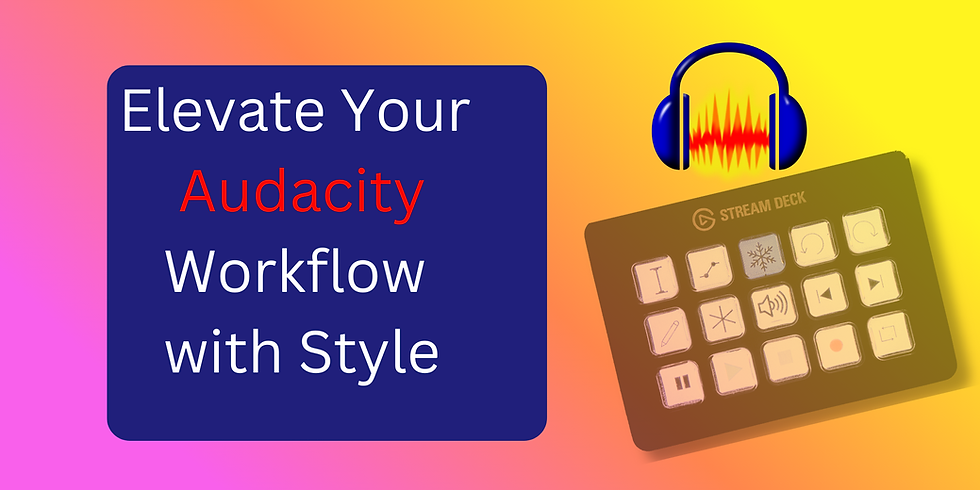
A Stream Deck is a customizable control pad that allows users to assign a variety of functions to its buttons. While it was initially designed for streamers, its benefits extend to audio editors, video creators, and anyone looking to optimize their workflow. With programmable keys, you can assign shortcuts, macros, and commands to streamline the most common tasks.
The true power of the Stream Deck lies in its flexibility. Users can create a personalized setup tailored to their specific audio editing needs, making it a game-changer for enhancing productivity.
Setting Up Your Stream Deck
To make the most of your Stream Deck, proper setup is crucial. Follow these simple steps:
Install the Stream Deck Software: Download and install the official Stream Deck software. This interface lets you customize your buttons with ease.
Connect Your Stream Deck: Connect the Stream Deck to your computer via USB. The software will detect the device automatically.
Create a Profile: In the software, make a new profile exclusively for Audacity. Organizing your commands here can save you time in the long run.
Add Actions: Start populating your buttons with actions. Common examples include keyboard shortcuts and launching specific applications.
Customize Icons: For easier identification, design custom icons for each button. Using images that reflect each command can help streamline your workflow.
Integrating Stream Deck with Audacity
Now, let’s dive into how to integrate your Stream Deck with Audacity. Here are some essential commands to consider:
Common Audacity Commands
Play/Pause: Assign a button to toggle play and pause. This is one of the most frequently used commands, helping you quickly review your edits.
Stop: Create a button for stopping playback. It can save you precious seconds when you need to halt audio immediately.
Record: Set a button to start recording. This function is a must-have for podcasters and musicians looking to capture sound swiftly.
Undo/Redo: Create buttons for undo and redo actions. These commands encourage experimentation without the worry of irreversible changes.
Zoom In/Out: Pair buttons to zoom in or out on the audio waveform, allowing for easier edits on specific sections.
Export: Assign a button for exporting your final audio file. This functionality can smoothen the saving process after your work is done.
By assigning these commands to your Stream Deck, you can significantly cut down on the time spent navigating through menus in Audacity.
Advanced Customization
For users wanting to further enhance their setup, multi-action buttons offer a powerful option. With a single press, you could create a button that:
Stops playback
Zooms in on the waveform
Starts playback from the current location
This type of customization is crucial for improving your efficiency in tasks that require multiple steps.
Tips for Maximizing Efficiency
To squeeze the most out of your Stream Deck and Audacity pairing, consider these practical tips:
Update Your Setup Regularly: Your editing style may change, so keep your Stream Deck current. Regularly review and adjust your button assignments to match your workflow.
Use Visual Cues: Choose button icons thoughtfully. Visual cues will help you recognize functions quickly, saving you time and reducing errors.
Practice: Take time to familiarize yourself with your new setup. Becoming comfortable with the Stream Deck will enhance your editing speed.
Explore Plugins: Audacity supports various plugins that add functionality. Investigate these tools and incorporate them into your workflow for added efficiency.
Stay Organized: Maintain organization in your audio files and projects. A tidy workspace fosters focus and improves overall productivity.
Final Thoughts
Integrating a Stream Deck with Audacity can dramatically improve your audio editing efficiency. By customizing your Stream Deck with essential commands and shortcuts, you can simplify your workflow and focus on what truly matters—creating engaging audio content.
Whether you are an experienced audio editor or just embarking on your editing journey, the combination of a Stream Deck and Audacity is a powerful way to enhance your productivity. Take the time to set up, explore, and witness how this tool can make your editing process smoother and more enjoyable.


Comments